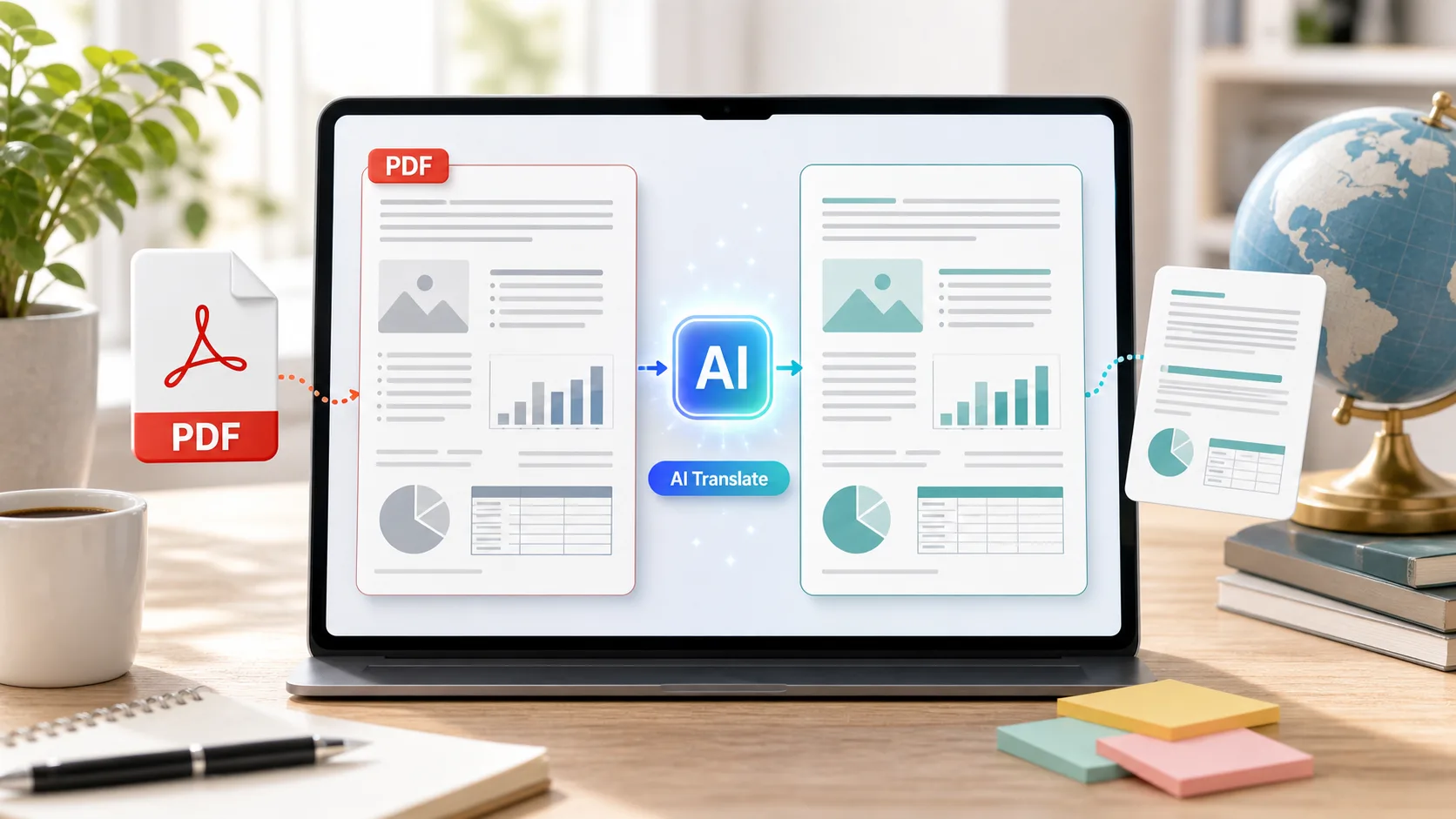
Translating a PDF is easy if all you need is plain text. The challenge starts when the document contains tables, charts, images, page numbers, footnotes, columns, or other carefully designed elements.
A good document translation tool should do more than convert words from one language to another. It should preserve the structure of the original file so that the translated version remains useful without requiring someone to rebuild the document manually.
This matters particularly for legal contracts, financial reports, consulting presentations, technical documents, and business records. Scanned PDFs create another challenge because the text may not exist as editable content at all.
I compared seven tools based on translation quality, formatting preservation, OCR, supported file types, language coverage, security, processing speed, and pricing. The right option depends on whether you need a quick personal translation or a reliable workflow for large volumes of professional documents.
The Best PDF Translation Tools at a Glance
| Tool | Best For | Formatting | File Support | Languages |
| Bluente | Professional document translation | Strong | PDF, Word, Excel, PowerPoint, images and scans | 120+ |
| DeepL | High quality general translation | Good | PDF, Word, PowerPoint and more | 30+ |
| Google Translate | Quick free translations | Basic | Documents and common formats | 100+ |
| Adobe Acrobat | PDF editing and translation workflows | Good | PDF and related formats | Multiple |
| Microsoft Translator | Business and Microsoft users | Good | Microsoft ecosystem | 100+ |
| DocTranslator | Simple document translation | Good | PDF, Word, Excel and more | 100+ |
| Smartcat | Enterprise localization | Strong | Many business formats | 280+ |
1. Bluente
Bluente is designed specifically for professional document translation where preserving the original structure matters. Instead of treating a PDF as a block of text, the platform is built to retain elements such as tables, charts, numbering, images, and complex layouts.
The platform supports more than 120 languages and works with major business formats including PDF, Word, Excel, PowerPoint, images, and scanned documents. OCR allows it to extract text from scanned files before translation, which is important for documents that do not contain selectable text.
Another useful feature is the ability to produce bilingual, review ready documents. That can be valuable for professional teams where translated material needs to be checked against the source before it is finalized.
Bluente is aimed particularly at legal, financial, consulting, and enterprise users. It supports custom glossaries, higher volume workflows, API access, and enterprise analytics, making it more suitable for recurring business translation than a basic online translator.
The platform also emphasizes document security. Uploaded documents are encrypted and automatically deleted after processing according to Bluente’s stated workflow.
Bluente reports 85% to 95% accuracy for legal language translation and turnaround times of a few minutes. These are company reported figures rather than independently verified benchmarks, so organizations handling sensitive or legally significant material should still review the translated document before using it.
Key features
- Translation in more than 120 languages
- PDF, Word, Excel, PowerPoint, image, and scanned document support
- OCR for scanned files
- Preservation of tables, charts, numbering, images, and layouts
- Bilingual review ready outputs
- Custom glossaries
- High volume document workflows
- API access
- Enterprise analytics
- Encryption for uploaded documents
- Automatic document deletion after processing
Pros
- Strong focus on formatting preservation
- Broad file and language support
- Handles scanned documents through OCR
- Useful for professional document workflows
- Supports custom terminology
- Enterprise features and API access
- Designed with sensitive business documents in mind
Cons
- AI translation may still require human review for legal and technical material
- Professional plans have page limits
- Business pricing is not publicly fixed
- Translation quality can vary depending on language, document quality, and terminology
Pricing
- Bluente currently lists a Starter option at $12 one time for up to 20 pages, with a 100 MB per file limit and 10 day validity.
- The Professional plan is $20 per user per month and includes 40 pages, working out to approximately $0.50 per page.
- Business pricing is customized for teams and can include higher page volumes, API access, glossaries, analytics, and account management.
Supported formats and languages: PDF, Word, Excel, PowerPoint, images, and scanned documents, with support for more than 120 languages.
Formatting preservation: One of Bluente’s main selling points is preserving tables, charts, numbering, images, and complex document layouts.
Security: Bluente states that uploaded documents are encrypted and automatically deleted after processing.
Best for: Legal, financial, consulting, and enterprise teams that need a professional PDF translation tool capable of handling complex documents without manually recreating the formatting.
For businesses where document structure is as important as the translated text, Bluente is a useful option to evaluate alongside general purpose translation platforms.
2. DeepL
DeepL has built a strong reputation around machine translation quality and is widely used for professional writing and document translation.
Its document translation capabilities support formats such as PDF, Word, PowerPoint, and other common business files. Depending on the file and plan, DeepL can maintain much of the original formatting while translating the underlying text.
Key features
- Document translation
- PDF support
- Word and PowerPoint support
- Glossary functionality
- Multiple translation models
- Business and API options
Pros
- Strong reputation for translation quality
- Clean interface
- Useful for professional writing
- Glossary support
- API available for developers
Cons
- Language coverage is narrower than some competitors
- Formatting results can vary by document
- Advanced functionality may require a paid plan
Pricing: DeepL offers free and paid plans, with pricing and document limits depending on the selected plan.
Supported formats and languages: Supports several major business document formats and dozens of languages.
Formatting preservation: Generally good for supported document types, although complex layouts should be checked after translation.
Security: DeepL provides security and data handling options that vary according to the product and subscription.
Best for: Professionals who want a widely used translation platform for documents and written content.
3. Google Translate
Google Translate remains one of the easiest ways to translate a document without paying for specialized software.
Its major advantage is accessibility. Users can translate supported documents directly through Google’s interface, making it convenient for quick translations and general understanding.
Key features
- Document translation
- Large language selection
- Web based interface
- Fast results
- No specialized software required
Pros
- Easy to access
- Free for many common uses
- Broad language coverage
- Fast for basic documents
- Familiar interface
Cons
- Complex formatting may not be preserved perfectly
- Less suitable for sensitive professional documents without reviewing applicable data policies
- Translation quality varies by language and context
- Limited control over specialized terminology
Pricing: Google Translate is free for standard consumer use. API usage is priced separately.
Supported formats and languages: Supports common document types and a large number of languages.
Formatting preservation: Basic document structure can be retained, but complex PDFs may require additional formatting work.
Security: Users should review Google’s current data handling policies before uploading confidential business documents.
Best for: Students, travelers, and professionals who need quick translations rather than a specialized document production workflow.
4. Adobe Acrobat
Adobe Acrobat is primarily a PDF creation and editing platform, but its broader document workflow makes it useful for people who already work extensively with PDFs.
Its strength is the ability to keep translation within a familiar PDF environment while combining it with editing, OCR, conversion, and document management features.
Key features
- PDF editing
- OCR
- Document conversion
- PDF organization
- AI assisted document features
- Integration with Adobe’s document ecosystem
Pros
- Strong PDF management
- Excellent OCR capabilities
- Useful for editing translated documents
- Familiar professional workflow
- Broad PDF functionality
Cons
- Translation is not its only focus
- Requires additional tools or features depending on the translation workflow
- Subscription cost may be higher than a basic translation service
Pricing: Adobe Acrobat offers several paid plans, with features and pricing depending on the subscription.
Supported formats and languages: Primarily focused on PDF workflows, with support for document conversion and multiple languages.
Formatting preservation: Strong for PDF editing and document structure, although translation results depend on the specific workflow used.
Security: Adobe provides enterprise and document security features, with options varying by product and plan.
Best for: Businesses that need PDF editing, OCR, document management, and translation related workflows in the same ecosystem.
5. Microsoft Translator
Microsoft Translator is useful for organizations already working heavily with Microsoft products. It supports translation across a broad range of languages and can be integrated into business applications through Microsoft’s ecosystem.
It is more of a translation service than a dedicated PDF formatting platform, so users working with highly complex PDFs may need an additional document processing step.
Key features
- Text and document translation
- Broad language support
- Microsoft ecosystem integration
- API access
- Business applications
Pros
- Strong enterprise ecosystem
- Broad language coverage
- API capabilities
- Useful for Microsoft based organizations
Cons
- Not primarily designed around complex PDF formatting
- May require additional tools for document preparation
- Advanced business workflows can require technical setup
Pricing: Microsoft offers different translation services and plans, including usage based options.
Supported formats and languages: Language support varies by service, with broad coverage across Microsoft’s translation products.
Formatting preservation: Depends on the document workflow and application being used.
Security: Microsoft provides enterprise security controls, but organizations should review the configuration of the specific service.
Best for: Businesses that already rely on Microsoft technology and need translation capabilities integrated into existing systems.
6. DocTranslator
DocTranslator focuses specifically on translating documents while attempting to maintain the original structure. It supports several common business formats and provides a relatively straightforward workflow for users who do not need a large enterprise localization platform.
Key features
- Document translation
- PDF support
- Multiple office formats
- Large language selection
- Online workflow
Pros
- Simple to use
- Focused on document translation
- Supports common business formats
- Useful for occasional document work
Cons
- Complex documents may still require manual review
- Security requirements should be checked for confidential files
- Advanced enterprise controls are more limited than specialized business platforms
Pricing: Pricing varies depending on the document and service selected.
Supported formats and languages: Supports PDF and several common office formats across many languages.
Formatting preservation: Designed to retain document structure, although results depend on the complexity of the source file.
Security: Users should review the current privacy and data retention policies before uploading sensitive documents.
Best for: Individuals and small businesses that occasionally need translated documents.
7. Smartcat
Smartcat is designed more broadly around translation and localization management. It combines machine translation with terminology management, collaboration, human review, and enterprise workflows.
That makes it particularly useful when translation is an ongoing organizational process rather than a one off PDF conversion.
Key features
- Translation management
- AI and machine translation
- Human review workflows
- Terminology management
- Collaboration tools
- Enterprise localization capabilities
Pros
- Strong localization workflow
- Useful terminology controls
- Designed for teams
- Supports human review
- Broad language coverage
Cons
- More complex than a simple PDF translator
- Pricing can be difficult to compare for occasional users
- May be more functionality than an individual needs
Pricing: Smartcat offers different plans and usage based options depending on organizational requirements.
Supported formats and languages: Broad format and language support designed for professional localization workflows.
Formatting preservation: Strong document workflow capabilities, although results depend on the source format and translation process.
Security: Enterprise security and administrative options are available depending on the plan.
Best for: Enterprises, localization teams, and businesses managing recurring multilingual content.
How I Evaluated These PDF Translation Tools
I focused on more than translation quality because a translated document is not particularly useful if its layout needs to be rebuilt from scratch.
The main criteria included formatting preservation, OCR support, language coverage, supported file types, terminology controls, security, processing speed, and pricing.
I also considered the difference between consumer translation and professional document translation. A travel document or short personal PDF has very different requirements from a financial report, legal agreement, or consulting presentation.
For professional documents, human review remains important. Even a strong AI translation system can misunderstand specialized terminology, abbreviations, names, figures, or context. Formatting should also be checked after translation, especially when the original document contains unusual tables, charts, or scanned pages.
Why Formatting Preservation Matters
PDFs are often designed documents rather than simple text files.
A financial report may contain tables where the relationship between numbers is essential. A legal document may depend on numbered clauses and footnotes. A presentation can combine text, images, diagrams, and charts on the same page.
If translation changes the structure, the reader may struggle to understand the document even when individual sentences are translated correctly.
This is why OCR, layout recognition, font handling, and document reconstruction matter when choosing a translation platform.
Tips for Translating PDFs Successfully
Use Searchable PDFs When Possible
A PDF containing selectable text is generally easier to process than a scanned image. If the file is scanned, choose a service with OCR capabilities.
Check Tables and Numbers
Translation tools can handle ordinary text well while still creating problems around tables, currencies, dates, units, and figures. Always check these elements manually in important documents.
Create a Terminology List
If your organization repeatedly translates the same technical terms, names, product descriptions, or legal phrases, a custom glossary can improve consistency.
Review Sensitive Documents
Legal, financial, medical, regulatory, and technical documents deserve human review even when the initial translation looks convincing.
Check the Final Layout
Do not assume that a successful translation means the PDF is ready to distribute. Review page breaks, headings, tables, charts, images, numbering, and footnotes before sharing the final version.
The Future of AI Document Translation
Document translation is moving beyond simple text conversion. Modern platforms increasingly combine machine translation with OCR, layout recognition, terminology management, and automated document reconstruction.
Enterprise users are also looking for more control. APIs, analytics, custom glossaries, security controls, and high volume processing can make the difference between a useful consumer tool and a practical business workflow.
At the same time, AI translation still benefits from human oversight. The more specialized the document, the more important terminology and contextual review become.
Final Takeaway
The best PDF translation tool depends on the document and the workflow behind it.
Bluente is particularly well suited to legal, financial, consulting, and enterprise teams that need formatting preservation, OCR, broad language support, and professional document workflows. DeepL is a strong general translation option, while Google Translate works well for quick and accessible translations.
Adobe Acrobat makes sense for PDF heavy workflows, Microsoft Translator fits organizations already using Microsoft’s ecosystem, and DocTranslator is useful for straightforward document translation. Smartcat is better suited to organizations managing larger localization operations.
For important documents, do not judge a translation tool only by how quickly it produces text. Check whether it preserves the original structure, handles your language pair well, protects sensitive information appropriately, and gives your team enough control over terminology and review.
A few minutes spent checking the translated document can prevent much larger problems later, particularly when the PDF contains legal language, financial figures, technical instructions, or other information where context matters.

